If the repository already exists, you have to do the following:
git rm -r --cached .git add .git commit -m ".gitignore is now working"

If the repository already exists, you have to do the following:
git rm -r --cached .git add .git commit -m ".gitignore is now working"https://www.gemboxsoftware.com/spreadsheet/examples/excel-images/209
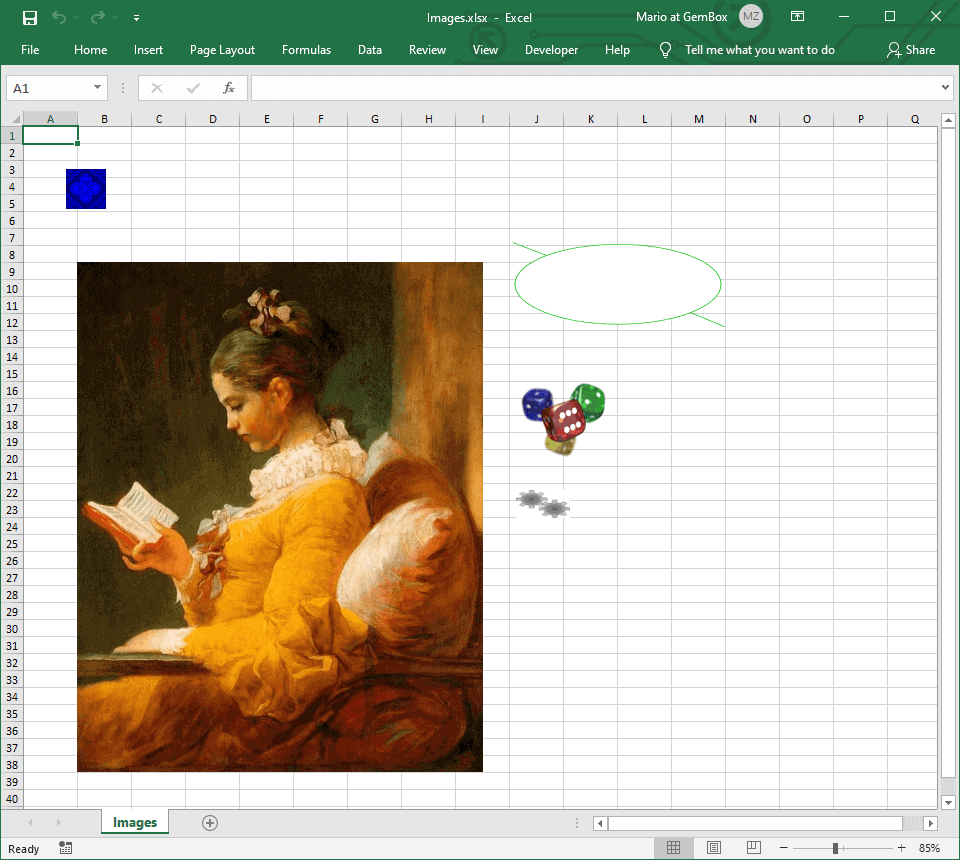
using GemBox.Spreadsheet;
class Program
{
static void Main()
{
// If using the Professional version, put your serial key below.
SpreadsheetInfo.SetLicense("FREE-LIMITED-KEY");
var workbook = new ExcelFile();
var worksheet = workbook.Worksheets.Add("Images");
// Add small BMP image with specified rectangle position.
worksheet.Pictures.Add("SmallImage.bmp", 50, 50, 48, 48, LengthUnit.Pixel);
// Add large JPG image with specified top-left cell.
worksheet.Pictures.Add("FragonardReader.jpg", "B9");
// Add PNG image with specified top-left and bottom-right cells.
worksheet.Pictures.Add("Dices.png", "J16", "K20");
// Add GIF image using anchors.
var picture = worksheet.Pictures.Add("Zahnrad.gif",
new AnchorCell(worksheet.Columns[9], worksheet.Rows[21], 100000, 100000),
new AnchorCell(worksheet.Columns[10], worksheet.Rows[23], 50000, 50000));
// Set picture's position mode.
picture.Position.Mode = PositioningMode.Move;
// Add SVG image with specified top-left cell and size.
picture = worksheet.Pictures.Add("Graphics1.svg", "J9", 250, 100, LengthUnit.Pixel);
// Set picture's metadata.
picture.Metadata.Name = "SVG Image";
workbook.Save("Images.xlsx");
}
}
GemBox.Spreadsheet supports all popular image formats like PNG, JPEG, EXIF, GIF, TIFF, ISO, SVG, EMF, and WMF. However, note that only PNG, JPEG, and EMF images are supported in XLS files (old binary format).
In PDF files, the SVG images are rendered as vector graphics, resulting in smaller file sizes and better quality than bitmap images (PNG, JPEG, BMP, etc.).
https://www.cisdem.com/resource/recover-notepad-files.html#:~:text=Steps%20to%20recover%20unsaved%20Notepad,AppData%5CRoaming%20by%20File%20Explorer.
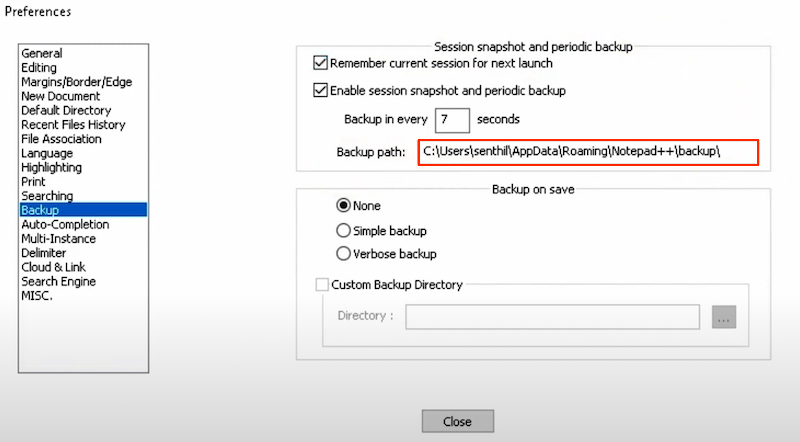
Differing from Notepad, Notepad++ has the autosave option by default. Via menu > Settings > Preferences > Backup > Enable session snapshot and periodic backup, Notepad++ users are allowed to recover unsaved notes easily, even after restarting the app. As a bonus tip, here we’ll demonstrate how to restore unsaved files from Notepad++ using auto backup feature.
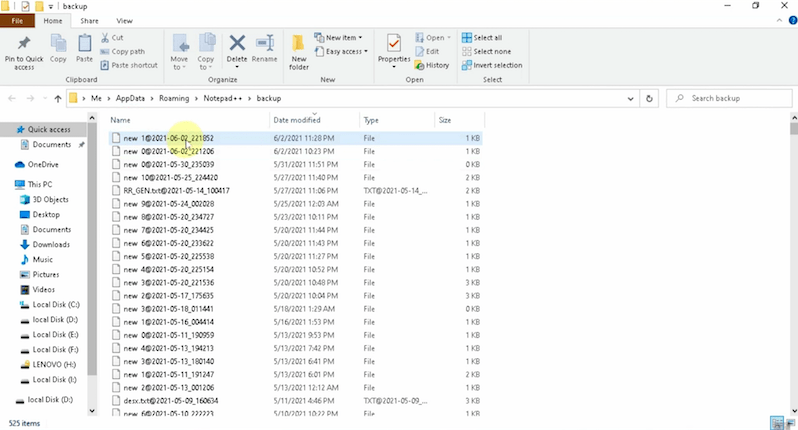
Unsaved files in Notepad++ will be automatically backed up and saved to its temporary folder on the local disk of Windows 11/10. The Notepad++ temp files location is C:\Users\USERNAME\AppData\Roaming\Notepad++\backup.
https://www.zickty.com/gziptotext
Controller.cs
Public Function GetValue() As HttpResponseMessage
Dim objResponse As Object = ""
Dim numeroElementos As Int32 = 0
Dim fecha As Date = Date.Now
Dim departamentoId As String = ""
Dim paramOption As String = Convert.ToString(Request.Headers.GetValues("paramOption").FirstOrDefault())
If Request.Headers.Contains("fecha") Then
fecha = Convert.ToString(Request.Headers.GetValues("fecha").FirstOrDefault())
End If
Select Case paramOption
Case "ObtenerInfoDisponibles"
Dim jResults As String = ObtenerInfoDisponiblesSerializar(fecha)
objResponse = CompressJsonData(jResults)
End Select
End Function
Private Function ObtenerInfoDisponiblesSerializar(fecha As String) As String
Dim sqlQuery As New System.Text.StringBuilder
sqlQuery.Append("ObtenerInfoDisponibles " + fecha & vbCrLf)
Dim dt As DataTable = MSSQL1.QueryDataTable(conexion, sqlQuery.ToString())
If dt.Rows.Count > 0 Then
Return JsonConvert.SerializeObject(dt)
End If
Return Nothing
End Function
Public Function CompressGZip(input As String, Optional encoding As Encoding = Nothing) As Byte()
encoding = If(encoding, Encoding.Unicode)
Dim bytes As Byte() = encoding.GetBytes(input)
Using stream As New MemoryStream()
Using zipStream As New GZipStream(stream, CompressionMode.Compress)
zipStream.Write(bytes, 0, bytes.Length)
Return stream.ToArray()
End Using
End Using
End Function
Function CompressJsonData(jsonData As String) As Byte()
Dim byteArray As Byte() = Encoding.UTF8.GetBytes(jsonData)
Using memoryStream As New MemoryStream()
Using gzipStream As New GZipStream(memoryStream, CompressionLevel.Optimal)
gzipStream.Write(byteArray, 0, byteArray.Length)
End Using
Return memoryStream.ToArray()
End Using
End Function
ALTER PROCEDURE [dbo].[ObtenerListaCorreos] @OpcionId AS varchar(50)
AS
BEGIN
DECLARE @strCorreos AS VARCHAR(MAX);
DECLARE @dtCorreos TABLE(correo VARCHAR(100));
DECLARE @intIndiceInicio AS INT;
DECLARE @intIndiceFin AS INT;
DECLARE @strCorreo AS VARCHAR(100);
DECLARE @ultimo AS INT;
SET @intIndiceInicio = 1;
SET @intIndiceFin = 0;
SET @ultimo = 0;
SELECT @strCorreos = [correo] from (
SELECT correo
FROM CORREOS
WHERE OPCIONID = @OpcionId
) as x
;
WHILE @intIndiceFin <> LEN(@strCorreos)
BEGIN
SET @intIndiceFin = CHARINDEX(',', @strCorreos, @intIndiceInicio);
IF @intIndiceFin = 0
BEGIN
SET @IntIndiceFin = LEN(@strCorreos);
SET @ultimo = 1
END;
IF @ultimo = 0
SET @strCorreo = SUBSTRING(@strCorreos, @intIndiceInicio, (@intIndiceFin - @intIndiceInicio));
ELSE
SET @strCorreo = SUBSTRING(@strCorreos, @intIndiceInicio, ((@intIndiceFin - @intIndiceInicio) + 1));
INSERT INTO @dtCorreos
VALUES(@strCorreo);
SET @intIndiceInicio = (@intIndiceFin + 1);
END;
SELECT *
FROM @dtcorreos
ORDER BY correo;
END;
In SQL Server, the sp_lock stored procedure was used in older versions to display information about locks that were currently being held by processes.
SELECT *
FROM sys.dm_exec_requests;
SELECT *
FROM sys.dm_os_waiting_tasks;
EXEC sp_who2;
DECLARE @sqltext VARBINARY(128)
SELECT @sqltext = sql_handle
FROM sys.sysprocesses
WHERE spid = 322
SELECT TEXT
FROM sys.dm_exec_sql_text(@sqltext)
https://www.c-sharpcorner.com/article/filtering-in-datagridview-in-vb-net-and-also-in-c-sharp/
In this article we will learn about how to filter data in datagridview. We can better understand this with an example.
Step 1
Create Windows Form with Textbox and DataGridView.

Step 2
In coding view, code as per the following code. Here, I give both code c# and vb.Net. You can choose as per your requirement(s).
Code as per Vb.Net
Imports System.Data.SqlClient
Public Class Form14
Dim libconn As SqlConnection
Dim daMain As SqlDataAdapter
Dim dtMain As New DataSet
Dim strQuery As String = ""
Dim strConnectionString As String
Dim otable As DataTable = New DataTable()
Private Sub Form14_Load(sender As System.Object, e As System.EventArgs) Handles MyBase.Load
load_data()
DataGridView1.AllowUserToAddRows = False
DataGridView1.AllowUserToDeleteRows = False
End Sub
Private Sub load_data()
Connetion()
daMain = New SqlDataAdapter("Select * From Employee", libconn)
dtMain.Clear()
daMain.Fill(dtMain)
DataGridView1.DataSource = dtMain.Tables(0)
libconn.Close()
DataGridView1.ClearSelection()
TextBox1.Text = ""
otable = GetOriginalDataTable()
End Sub
Public Function Connetion()
strConnectionString = "Data Source=UDAY-LAPTOP;Initial Catalog=sqldemo;Integrated Security=true"
libconn = New SqlConnection
libconn.ConnectionString = strConnectionString
If libconn.State <> ConnectionState.Open Then
Try
libconn.Open()
Catch conn_error As SqlException
MsgBox(conn_error.Message)
Connetion = False
End Try
End If
Connetion = True
End Function
Private Function GetOriginalDataTable() As DataTable
Dim dtable As DataTable = New DataTable()
For Each col As DataGridViewColumn In DataGridView1.Columns
dtable.Columns.Add(col.Name)
Next
For Each row As DataGridViewRow In DataGridView1.Rows
Dim dRow As DataRow = dtable.NewRow()
Dim flag As Integer = -1
For Each cell As DataGridViewCell In row.Cells
dRow(cell.ColumnIndex) = cell.Value
Next
dtable.Rows.Add(dRow)
Next
Return dtable
End Function
Private Function SearchGrid()
Dim dtable As DataTable = New DataTable()
If TextBox1.Text.Length > 0 And DataGridView1.RowCount = 0 Then
DataGridView1.DataSource = otable
End If
If TextBox1.Text.Length = 0 Then
DataGridView1.DataSource = Nothing
DataGridView1.DataSource = otable
Else
For Each col As DataGridViewColumn In DataGridView1.Columns
dtable.Columns.Add(col.Name)
Next
For Each row As DataGridViewRow In DataGridView1.Rows
Dim dRow As DataRow = dtable.NewRow()
Dim flag As Integer = -1
For Each cell As DataGridViewCell In row.Cells
dRow(cell.ColumnIndex) = cell.Value
Dim str As String = cell.Value.ToString().ToLower()
Dim str1 As String = TextBox1.Text.ToLower()
If str.Contains(str1.ToString()) = True Then
flag = 1
End If
Next
If flag = 1 Then
dtable.Rows.Add(dRow)
End If
Next
DataGridView1.DataSource = Nothing
DataGridView1.DataSource = dtable
End If
SearchGrid = True
End Function
Private Function HighlightGrid()
If TextBox1.Text.Length = 0 Then
For n As Integer = 0 To (DataGridView1.Rows.Count) - 1
For m As Integer = 0 To (DataGridView1.Rows(n).Cells.Count) - 1
DataGridView1.Rows(n).Cells(m).Style.BackColor = SystemColors.Control
Next
Next
Else
For n As Integer = 0 To (DataGridView1.Rows.Count) - 1
For m As Integer = 0 To (DataGridView1.Rows(n).Cells.Count) - 1
Dim str As String = DataGridView1.Rows(n).Cells(m).Value.ToString().ToLower()
Dim str1 As String = TextBox1.Text.ToLower()
If str.Contains(str1.ToString()) = True Then
DataGridView1.Rows(n).Cells(m).Style.BackColor = Color.Yellow
Else
DataGridView1.Rows(n).Cells(m).Style.BackColor = SystemColors.Control
End If
Next
Next
End If
HighlightGrid = True
End Function
Private Sub TextBox1_KeyUp(sender As Object, e As System.Windows.Forms.KeyEventArgs) Handles TextBox1.KeyUp
If e.KeyCode = Keys.Back Then
DataGridView1.DataSource = otable
SearchGrid()
HighlightGrid()
DataGridView1.ClearSelection()
End If
End Sub
Private Sub TextBox1_TextChanged(sender As System.Object, e As System.EventArgs) Handles TextBox1.TextChanged
SearchGrid()
HighlightGrid()
DataGridView1.ClearSelection()
End Sub
End ClassCode as per C#
using System.Data.SqlClient;
public class Form14
{
private SqlConnection libconn;
private SqlDataAdapter daMain;
private DataSet dtMain = new DataSet();
private string strQuery = "";
private string strConnectionString;
private DataTable otable = new DataTable();
private void Form14_Load(System.Object sender, System.EventArgs e)
{
load_data();
DataGridView1.AllowUserToAddRows = false;
DataGridView1.AllowUserToDeleteRows = false;
}
private void load_data()
{
Connetion();
daMain = new SqlDataAdapter("Select * From Employee", libconn);
dtMain.Clear();
daMain.Fill(dtMain);
DataGridView1.DataSource = dtMain.Tables(0);
libconn.Close();
DataGridView1.ClearSelection();
TextBox1.Text = "";
otable = GetOriginalDataTable();
}
public void Connetion()
{
strConnectionString = "Data Source=UDAY-LAPTOP;Initial Catalog=sqldemo;Integrated Security=true";
libconn = new SqlConnection();
libconn.ConnectionString = strConnectionString;
if (libconn.State != ConnectionState.Open)
{
try
{
libconn.Open();
}
catch (SqlException conn_error)
{
Interaction.MsgBox(conn_error.Message);
Connetion = false;
}
}
Connetion = true;
}
private DataTable GetOriginalDataTable()
{
DataTable dtable = new DataTable();
foreach (DataGridViewColumn col in DataGridView1.Columns)
dtable.Columns.Add(col.Name);
foreach (DataGridViewRow row in DataGridView1.Rows)
{
DataRow dRow = dtable.NewRow();
int flag = -1;
foreach (DataGridViewCell cell in row.Cells)
dRow(cell.ColumnIndex) = cell.Value;
dtable.Rows.Add(dRow);
}
return dtable;
}
private void SearchGrid()
{
DataTable dtable = new DataTable();
if (TextBox1.Text.Length > 0 & DataGridView1.RowCount == 0)
DataGridView1.DataSource = otable;
if (TextBox1.Text.Length == 0)
{
DataGridView1.DataSource = null;
DataGridView1.DataSource = otable;
}
else
{
foreach (DataGridViewColumn col in DataGridView1.Columns)
dtable.Columns.Add(col.Name);
foreach (DataGridViewRow row in DataGridView1.Rows)
{
DataRow dRow = dtable.NewRow();
int flag = -1;
foreach (DataGridViewCell cell in row.Cells)
{
dRow(cell.ColumnIndex) = cell.Value;
string str = cell.Value.ToString().ToLower();
string str1 = TextBox1.Text.ToLower();
if (str.Contains(str1.ToString()) == true)
flag = 1;
}
if (flag == 1)
dtable.Rows.Add(dRow);
}
DataGridView1.DataSource = null;
DataGridView1.DataSource = dtable;
}
SearchGrid = true;
}
private void HighlightGrid()
{
if (TextBox1.Text.Length == 0)
{
for (int n = 0; n <= (DataGridView1.Rows.Count) - 1; n++)
{
for (int m = 0; m <= (DataGridView1.Rows(n).Cells.Count) - 1; m++)
DataGridView1.Rows(n).Cells(m).Style.BackColor = SystemColors.Control;
}
}
else
for (int n = 0; n <= (DataGridView1.Rows.Count) - 1; n++)
{
for (int m = 0; m <= (DataGridView1.Rows(n).Cells.Count) - 1; m++)
{
string str = DataGridView1.Rows(n).Cells(m).Value.ToString().ToLower();
string str1 = TextBox1.Text.ToLower();
if (str.Contains(str1.ToString()) == true)
DataGridView1.Rows(n).Cells(m).Style.BackColor = Color.Yellow;
else
DataGridView1.Rows(n).Cells(m).Style.BackColor = SystemColors.Control;
}
}
HighlightGrid = true;
}
private void TextBox1_KeyUp(object sender, System.Windows.Forms.KeyEventArgs e)
{
if (e.KeyCode == Keys.Back)
{
DataGridView1.DataSource = otable;
SearchGrid();
HighlightGrid();
DataGridView1.ClearSelection();
}
}
private void TextBox1_TextChanged(System.Object sender, System.EventArgs e)
{
SearchGrid();
HighlightGrid();
DataGridView1.ClearSelection();
}
}Output 1
When you run the application, by default all data will be loaded in datagridview as per the following:

Final Output
In Textbox, when I type IT, the following records will be filtered:

In this article, we have learned about how to filter data in datagridview and also highlight cells.